Repositories
A repository is where Pulp stores content versions. Tangerine exposes one combined list across every installed plugin and opens a plugin-aware detail page for each repository.
The repository list
The list offers a rows-per-page selector (25, 50, or 100) and sortable Name and Updated columns. Page size, page number, search, and sort order are all kept in the URL, so a refresh or a detail page Back link restores the same view.
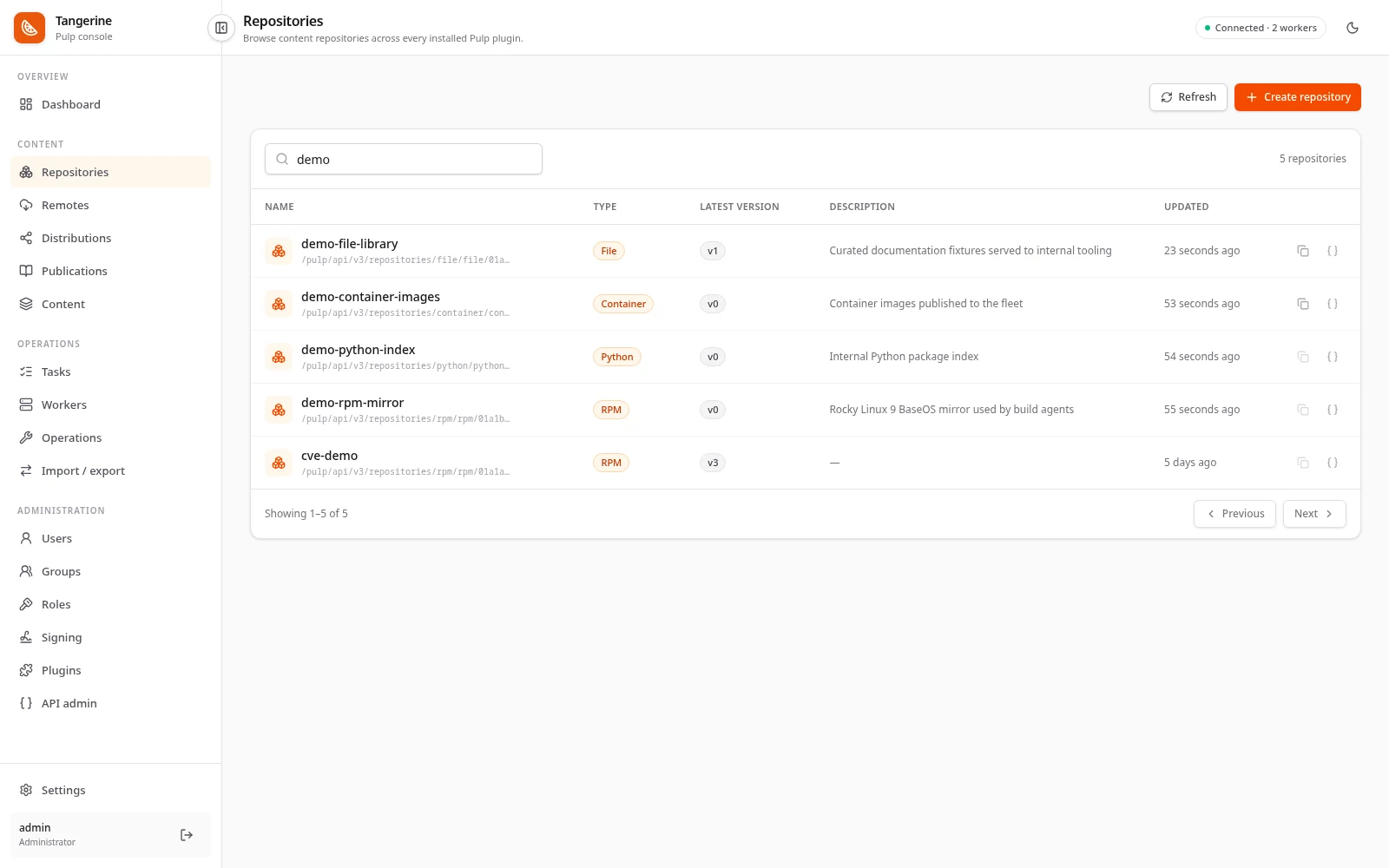
The list shows the combined /repositories/ endpoint: name, API href, type badge, latest version
number, description, and update time.
- Search filters by name using server-side
name__contains. The term is stored in the URL as?q=, so a refresh or a Back navigation keeps the filter. - Pagination is server-side through
?page=, with 25 rows per page. List state never leaks to another screen. - The copy action copies every distribution URL attached to that repository, one per line. It is the quickest way to hand a client the endpoints it needs.
- The
{}action opens the raw API record in the shared bottom pane instead of a new tab.
Creating a repository
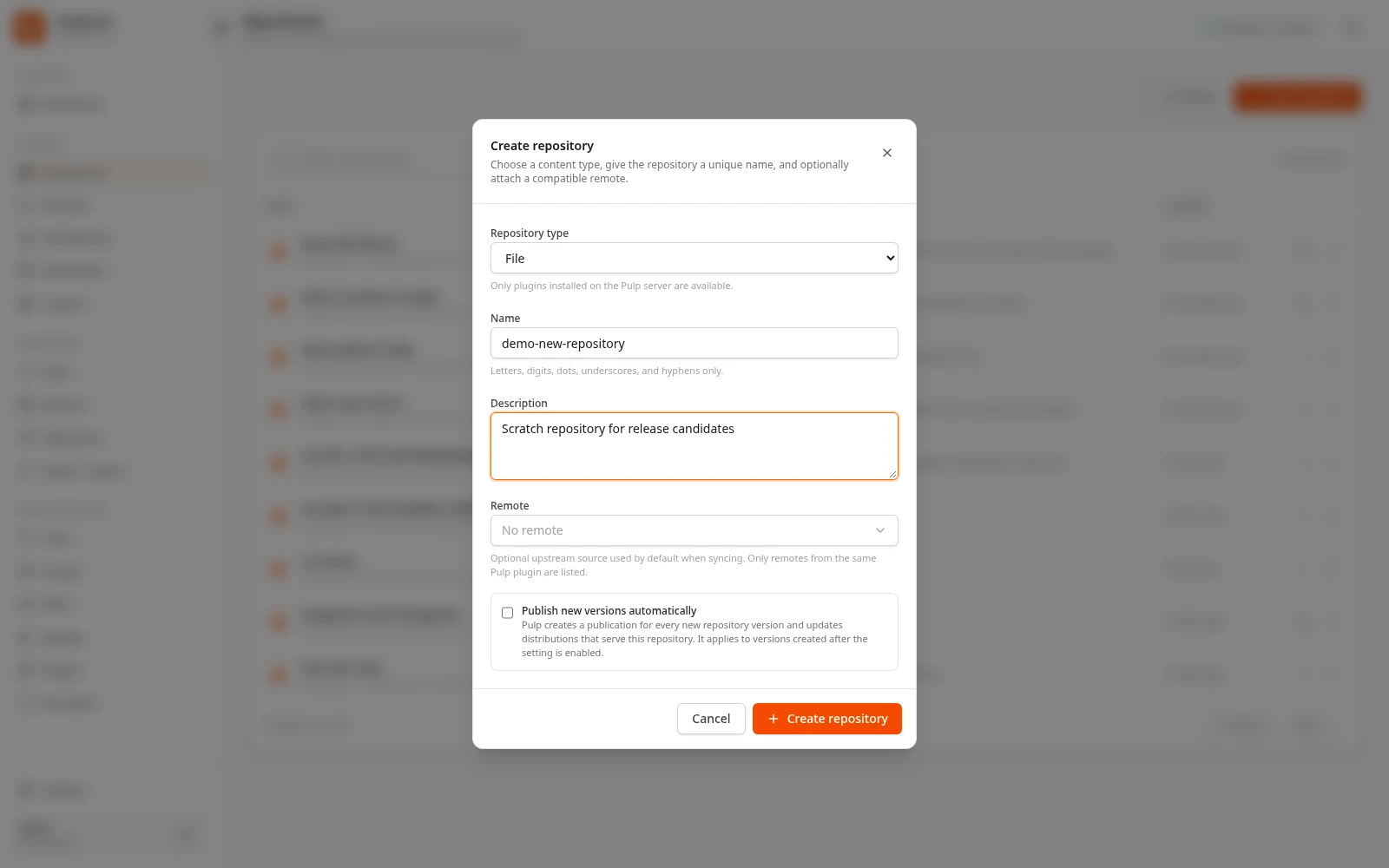
Create repository opens a single dialog that adapts to the chosen type:
- Pick a repository type. Only plugins installed on the server appear; each option maps to that
plugin's
repositories/<plugin>/<type>/endpoint. - Enter a name — letters, digits, dots, underscores, and hyphens. Pulp enforces uniqueness within the type.
- Optionally add a description and attach a remote. Remote options are filtered to types the selected repository can sync from; same plugin is not enough, so a container repository never offers a pull-through remote it cannot use.
- On File, RPM, Debian, and Python repositories you can enable Publish new versions
automatically. This maps to Pulp's
autopublishflag and only affects versions created after it is turned on. - On RPM repositories, OSV vulnerability scanning adds the
osv_configentries the scan task needs. Each row is an ecosystem (Rocky Linux, AlmaLinux, Red Hat, openSUSE, and the other OSV ecosystems Pulp supports) plus its releases. Leave it empty to keep scanning off; every release entry triggers one OSV query per package.
The type list covers File, RPM, Debian, Python, Container, Ansible, Gem, Maven, NPM, and Hugging Face when those plugins are present. If a type is listed but the plugin is missing, creation fails with an explanatory message instead of a silent no-op.
Repository detail
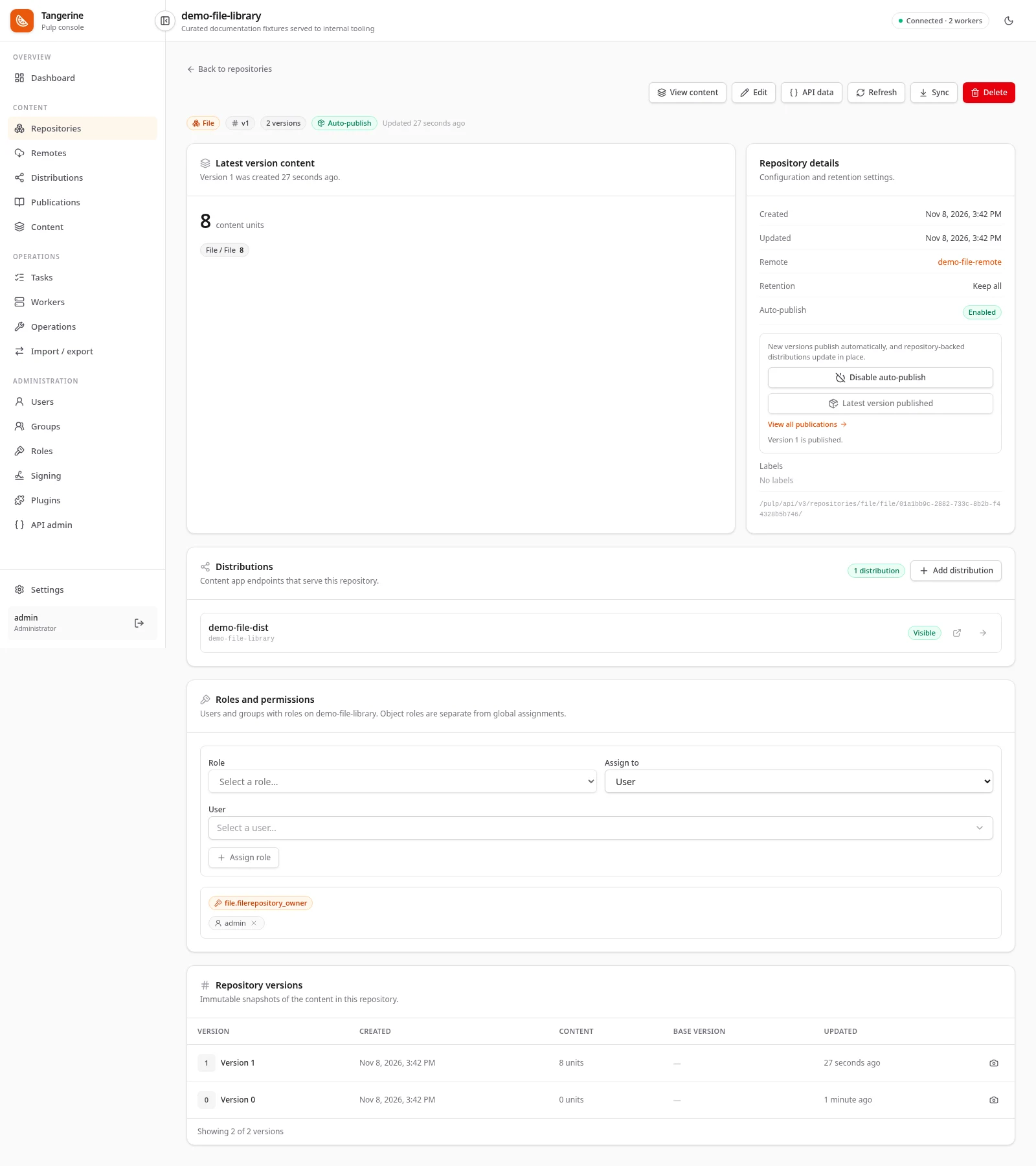
The detail page pulls the plugin-specific repository record, not the combined one. That matters
because the combined response omits fields such as autopublish.
Header actions
| Action | What it does |
|---|---|
| Edit | Changes name, description, remote, and (where supported) auto-publish |
| API data | Shows the plugin-specific JSON in the bottom pane |
| Remote | Opens the attached remote's detail page, when one is set |
| Sync | Starts POST <repository>/sync/ using the configured remote |
| Modify content | Adds or removes content units to create a new version |
| Delete | Confirmation that requires typing the repository name |
Latest version content summarises the newest version: total content units and a count per content type. A repository with no versions says so instead of showing an empty table.
Repository details shows created/updated timestamps, the remote, retention behaviour, auto-publish state, labels, and the API href.
Distributions lists every distribution serving this repository, with its base path and visibility. When none exists, the card offers a create form pre-filled with a unique name and base path. Once one exists, Add distribution stays available, so a repository can expose several endpoints. Distribution creation never overwrites an existing name or base path.
Roles and permissions assigns object-scoped roles on this repository — separate from global assignments. See Users, groups, and roles.
Repository versions lists immutable snapshots newest first, with content counts, base version, and update time. Each row has a snapshot button and, for every non-latest version, a delete button.
Modifying content
Modify content on the latest-version card opens a dialog that creates a new version without a sync or upload:
- Choose the base version the new version starts from. It defaults to the newest version.
- Choose a content type and search its units.
- Switch between Add content and Remove content. Adding browses the global content collection; removing browses only units present in the chosen base version.
- Select units, review the chips for both lists, and choose Apply changes.
Tangerine posts base_version, add_content_units, and remove_content_units to Pulp's
modify/ endpoint and waits for the task. The same unit cannot be in both lists. A successful
change refreshes the version history; earlier versions are untouched.
Repository-scoped SSO admins use the gateway's scoped modify endpoint, so the action stays available without granting direct repository PATCH rights.
Deleting a version
The trash button on a non-latest version asks for confirmation, then deletes that version. Pulp refuses to delete the repository's latest version, so the button is hidden there. Content and artifacts still referenced by another version or publication are preserved; deleting the last reference does not reclaim storage until orphan cleanup runs. See Operations.
Version snapshots
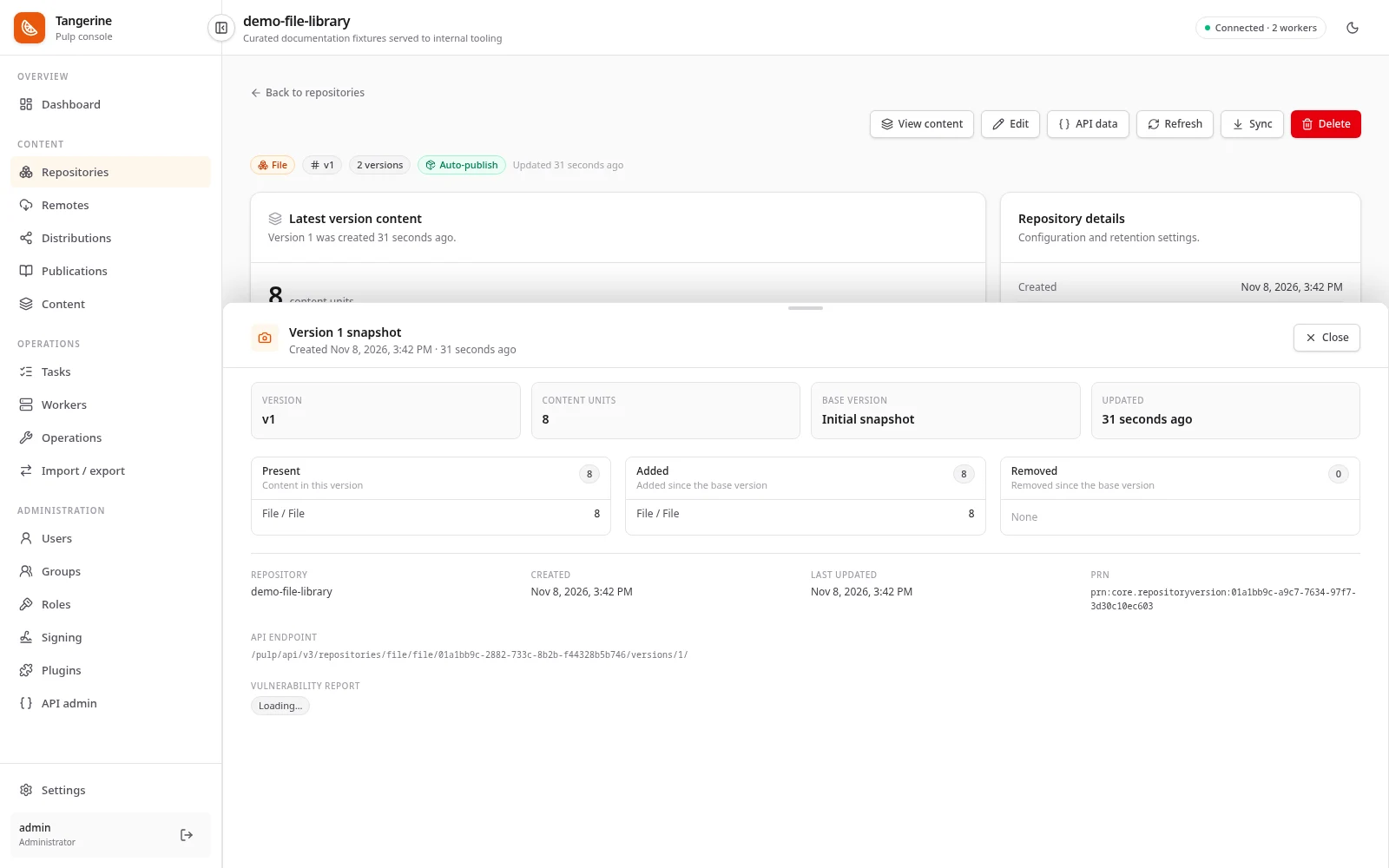
The snapshot button opens the shared bottom pane with:
- the version number, content-unit total, base version ("Initial snapshot" for the first one), and when it was created;
- Present, Added, and Removed summaries by content type;
- repository name, creation and update timestamps, and the PRN;
- the version API endpoint and its vulnerability summary: severity chips when a scan found advisories, Clean when it found none, or Not scanned;
- a footer Scan for vulnerabilities action that starts Pulp's scan task for that version.
The pane is resizable: drag its top handle, or focus the handle and use the arrow keys, Home, and End. Escape closes it.
Scanning for vulnerabilities
RPM and Python repositories can be scanned for known vulnerabilities. Pulp stores one
vulnerability report per content unit and exposes it through the package's vuln_report field; the
content browser turns those reports into per-version CVE badges.
- For RPM, configure OSV vulnerability scanning in Create or Edit first. Without
osv_config, Scan is disabled with an explanation. - Scan in the repository header scans the latest version; the version snapshot pane scans that specific version. Both start an asynchronous task and link to it.
- Scans contact
api.osv.dev; a blocked network leaves versions Not scanned. The task's error names the failure. - Re-scanning updates the existing reports in place. Reports are content-level, so the same package version shows the same advisories in every repository.
- Python repositories use their own scan endpoint and remote
vulnerabilitiesflag; no OSV configuration is needed.
Syncing
Sync opens a small confirmation that explains what will happen: Pulp starts an asynchronous task using the repository's configured remote. If no remote is attached, the task fails — Tangerine does not invent one.
On success a banner links straight to the started task. Syncs download metadata and, depending on the remote's policy, content. Progress and errors appear on the task detail page.
Publishing
Pulp has two ways to make repository content consumable:
- Auto-publish — Pulp creates a publication whenever a new version appears. Supported on File, RPM, Debian, and Python repositories. The card in the sidebar switches it on or off.
- Manual publish — create a publication for a specific version.
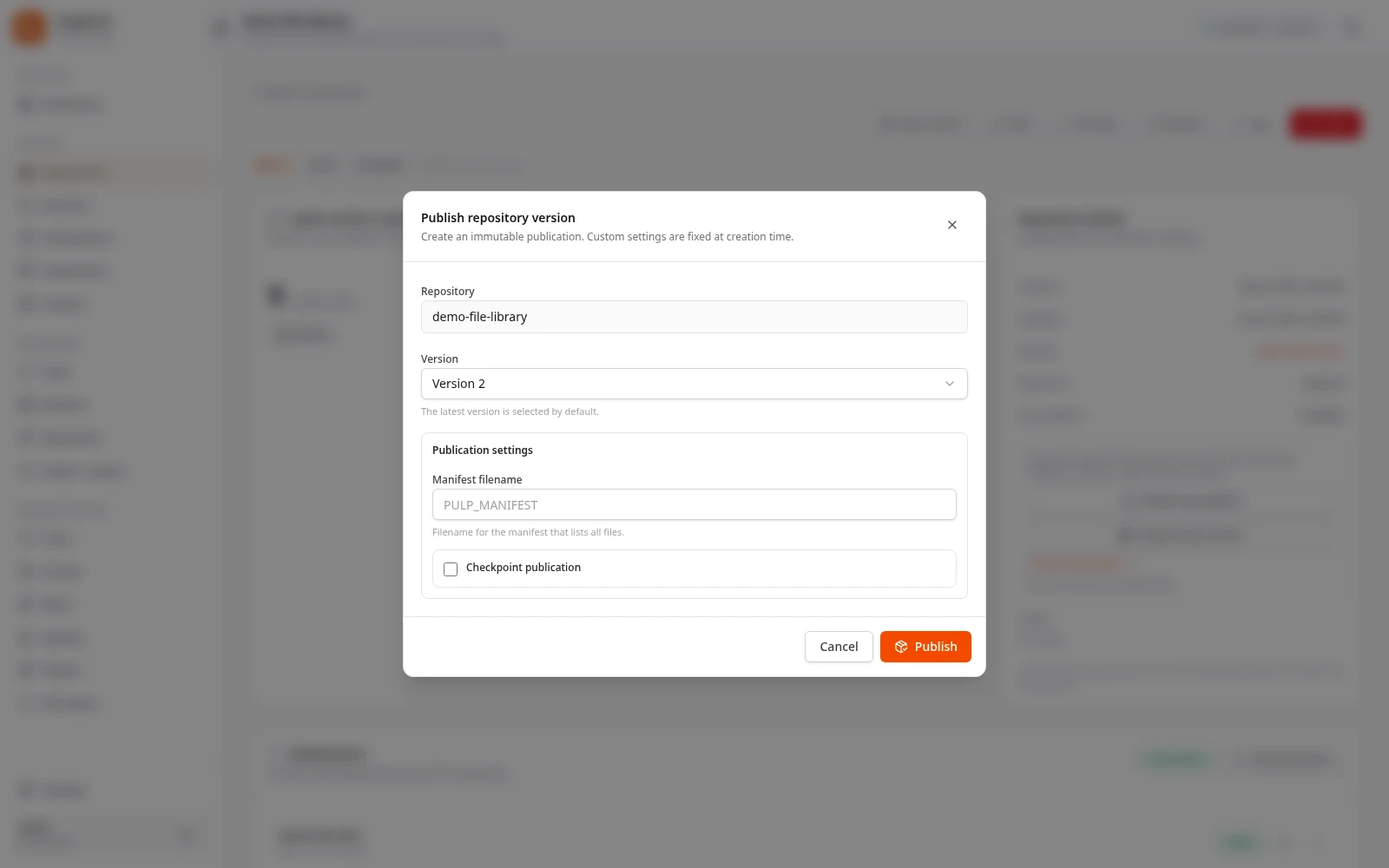
Publish latest version opens the publication dialog for the newest version. It shows the repository, the version selector (latest by default), and the publication settings that the plugin accepts — for File that is the manifest filename and a checkpoint flag. Settings are fixed at creation time because publications are immutable.
Not every type uses publications:
| Repository type | Publishing |
|---|---|
| File, RPM, Debian, Python | Auto-publish or manual publication; distributions serve publications |
| Gem | Manual publication; no auto-publish |
| Container, Ansible, NPM, Maven, Hugging Face | Content served directly by distributions; publications are not used |
When a type does not use publications, the detail page says so instead of showing controls that would fail. Hugging Face is a special case: publication creation is broken in the upstream plugin, so Tangerine treats its distributions as direct-serve.
Two behaviours are worth remembering:
- Enabling auto-publish does not publish versions that already exist. Use Publish latest version once after turning it on, or the next new version will publish while the current one stays unpublished.
- Disabling auto-publish stops future publications but leaves existing publications and distributions untouched. Repository-backed distributions keep serving the last publication.
For the publications themselves — filtering, inspecting, deleting — see Publications.
Deleting a repository
Delete is destructive and guarded: the confirmation requires typing the exact repository name. Pulp may delete synchronously or return a task; Tangerine waits for the task before refreshing the list. Distributions or publications that still reference the repository can make deletion fail, and the API error is shown as-is so you can remove the dependants first.
Next: Remotes · Distributions